Yoast SEO is one of the most popular plugins in WordPress. YoastSEO is the most complete SEO plugin used for WordPress websites. A sitemap is a feature offered to users by Yoast SEO. At first, the settings may confuse you. Especially those who have worked with Google Sitemap before, they may not find the option they are looking for.
Read Also: Fix Sitemap Could not be Read in Search Console
We have previously talked about how to create sitemap with Yoast SEO . In this article, we discuss sitemap in YoastSEO and how to exclude a page from sitemap.
Why Do We Need to Exclude a Page from Sitemap? How to Remove Pages from Yoast Sitemap? How to Bulk Remove Links from Sitemap? How to Increase Sitemap Link Limit? How to Remove Categories from Sitemap? ConclusionWhy Do We Need to Exclude a Page from Sitemap?
You may have many reasons to exclude a page from sitemap. Sometimes we are forced to remove a page from our sitemap to avoid damaging our website’s SEO. Repetitive URLs, robot.txt, page error, fake links, and images are some of the items you need to remove from your sitemap.
Therefore, if a page belongs to the categories mentioned above, we need to remove them from the sitemap to avoid damaging our website’s SEO.
How to Remove Pages from Yoast Sitemap?
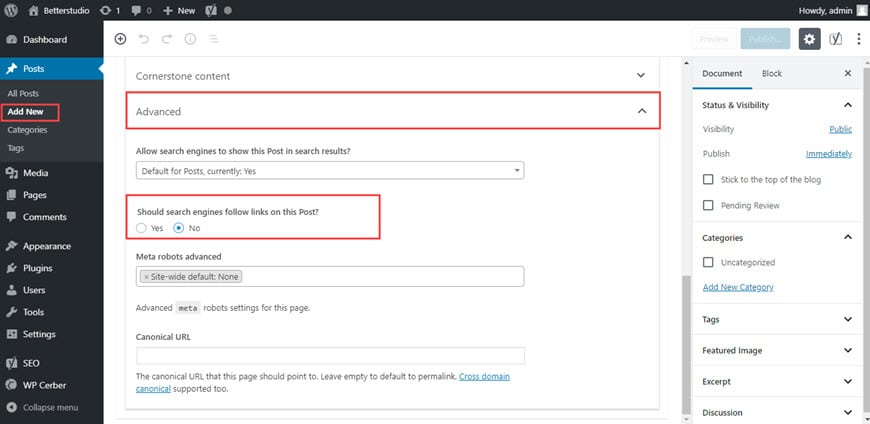
Now that you are familiar with the reasons to delete links/pages from your YoastSEO sitemap, it’s time to discuss how to remove links from Yoast sitemap.
To remove a link from Yoast sitemap you need to head over to your WordPress dashboard. From the pages and posts, open the post or page you want to remove. Now from the YoastSEO box go to the advanced tab and change the “Allow search engines to show this post in search results?” from yes to no and update the post or page.
Now your post or page won’t be displayed in search engines.
How to Bulk Remove Links from Sitemap?
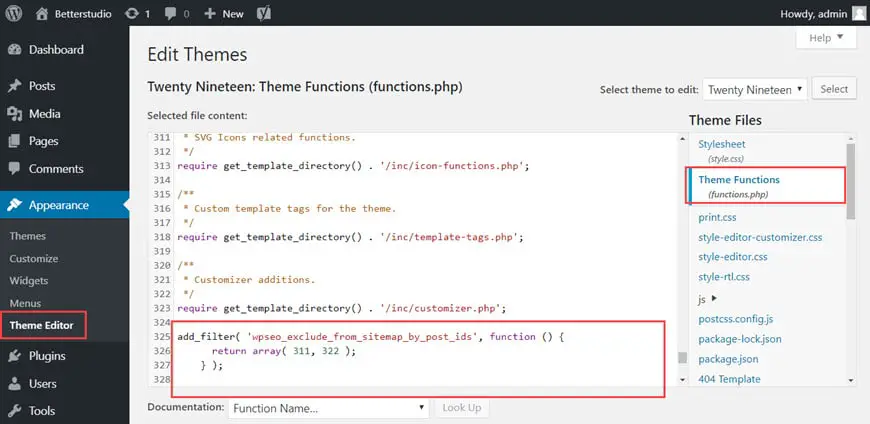
In some cases, the process of removing a link can be time-consuming and boring. The other way to bulk remove links is by adding a code to your function.php file.
add_filter( 'wpseo_exclude_from_sitemap_by_post_ids', function () { return array( 311, 322 ); } );In the array brackets, you can enter your posts and pages ID to delete them from your sitemap.
How to Increase Sitemap Link Limit?
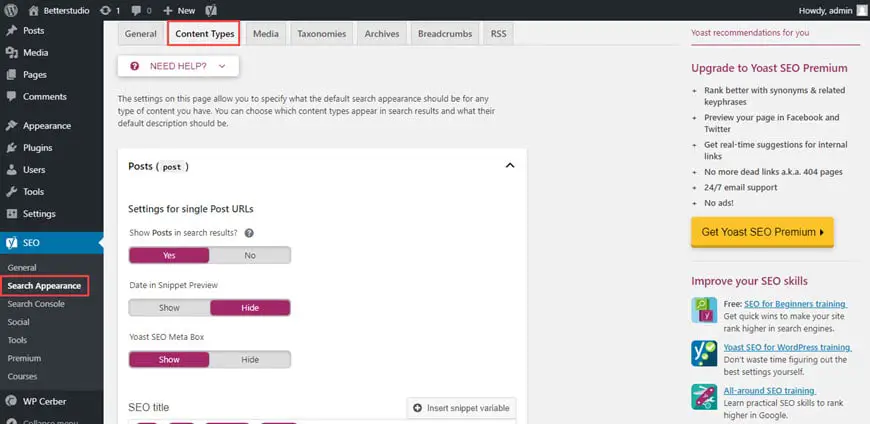
A sitemap includes a lot of links related to your website. The more sorted they are the better the sitemap works for your website’s SEO. Therefore, it is necessary to make some changes to your sitemap to keep it neat and limit the number of links used in your sitemap.
To change sitemap limitations, from your YoastSEO settings go to search appearance and personalize the settings.
As you probably know, some post types are crucial and need to be indexed, and some are used on your WordPress website. Therefore, if you are using many post types in your website, you can deactivate this option in YoastSEO from the content type tab.
You can also make changes to the media section of your sitemap and present it better to Google and other search engines.
How to Remove Categories from Sitemap?
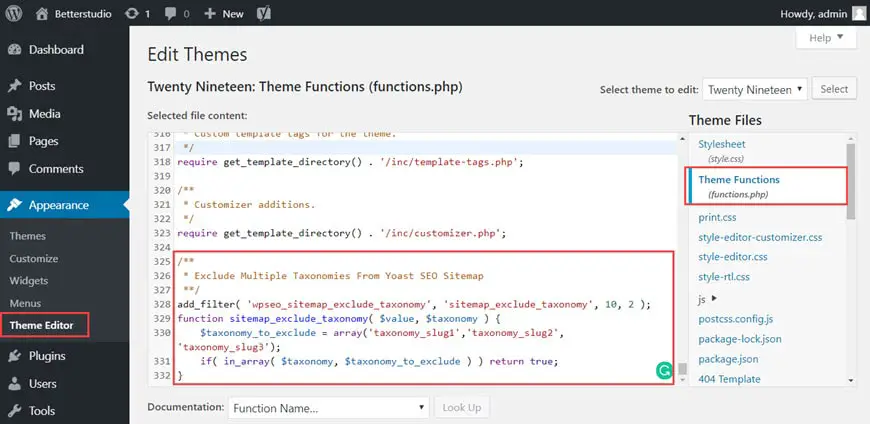
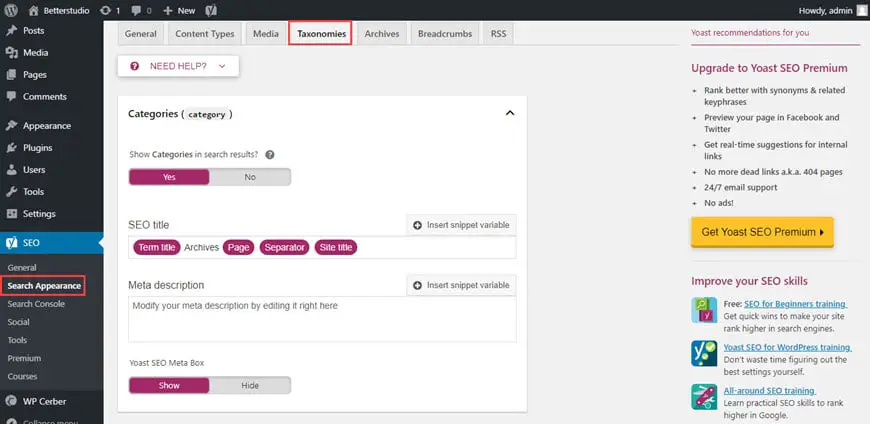
To remove categories from your sitemap you need to head over to taxonomies tab. Once you are in this tab, you can change the categories settings in your YoastSEO sitemap. Also, you can change your tags settings in the taxonomies tab as well.
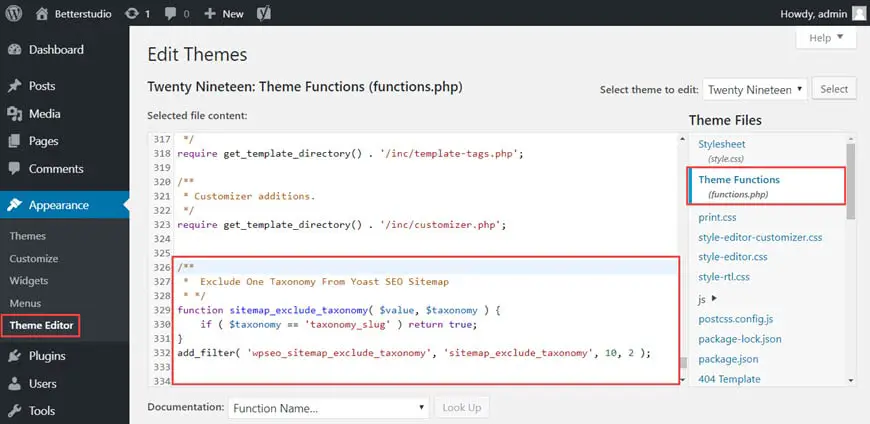
Some taxonomies may not be available in this section, therefore, you may need to use code to filter them out in your sitemap.
Example code to remove single taxonomy:
/* Exclude One Taxonomy From Yoast SEO Sitemap */ function sitemap_exclude_taxonomy( $value, $taxonomy ) { if ( $taxonomy == 'taxonomy_slug' ) return true; } add_filter( 'wpseo_sitemap_exclude_taxonomy', 'sitemap_exclude_taxonomy', 10, 2 );Example code to remove multiple taxonomies:
/* Exclude Multiple Taxonomies From Yoast SEO Sitemap */ add_filter( 'wpseo_sitemap_exclude_taxonomy', 'sitemap_exclude_taxonomy', 10, 2 ); function sitemap_exclude_taxonomy( $value, $taxonomy ) { $taxonomy_to_exclude = array('taxonomy_slug1','taxonomy_slug2', 'taxonomy_slug3'); if( in_array( $taxonomy, $taxonomy_to_exclude ) ) return true; }Conclusion
Sitemap plays an important role in your website’s SEO. Google uses sitemap to index your website. Therefore, it is necessary to have clean and sorted sitemap.
In this article, we discussed many ways to filter sitemap. Keep in mind, to find a real reason to remove links from Yoast sitemap and then decide whether you should remove it or keep it. Because removing an important page/link can damage your sitemap and your website’s SEO.
Please Share This:Common questions
Does removing a page from the sitemap also remove it from Google's search results?
Not by itself. Taking a URL out of the sitemap just stops Yoast from submitting it for crawling that way. To actually remove it from search results, the page needs a noindex tag, and Google still has to recrawl and process that change, which can take time.
If I set a page to noindex, is it automatically removed from the sitemap too?
Yes. Yoast checks the indexing status of each page when building the sitemap and leaves out anything marked noindex, so you do not need a separate step for that page.
Can I exclude a page from the sitemap but keep it indexable?
Yes, using the wpseo_exclude_from_sitemap_by_post_ids filter in a code snippet. The page stays fully indexable and reachable through normal links; it just is not listed in the sitemap file.
Where do I find my site's current Yoast sitemap?
By default it is at yourdomain.com/sitemap_index.xml. Yoast's settings screens also tend to show a direct link to the sitemap, but the exact menu location has changed in past plugin redesigns, so check your installed version's SEO settings if typing the URL directly does not work.
Do I need the paid version of Yoast SEO to exclude pages or categories?
No. The per-page, per-category, and per-post-type exclusion settings described here are part of the free Yoast SEO plugin.
Sources
About this page
Last reviewed October 30, 2026 by the Better Studio editors. Read our editorial policy or report an error.